
In 2026 listening to music offline is a big need. Not everyone can stream songs all the time because of internet issues and limited data. That’s why SnapTube comes in—it lets you download MP3 files straight from videos so you can enjoy music without WiFi and skip ads. In this guide, I’ll show you how to use it step by step to download MP3s easily and safely.
Step 1 – Install SnapTube on Your Device
As it is not available on the Google Play Store, so you must need to download the APK file from our this website.
Open your browser and search SnapTube.ac
Then go to your device Settings, click the security menu, then find install unknow apps and now allow installs from this source
After installing, open the app and let it load.
Step 2 – Search or Paste the Video Link
Use the search bar to write the name of songs or an artist.
Or you can copy a link from videos on YouTube or another website.
Paste it directly into the snaptube App.
It will instantly show a video result with download options.
choose the one you want, then tap it.
The app will scan the video and offer several download formats.
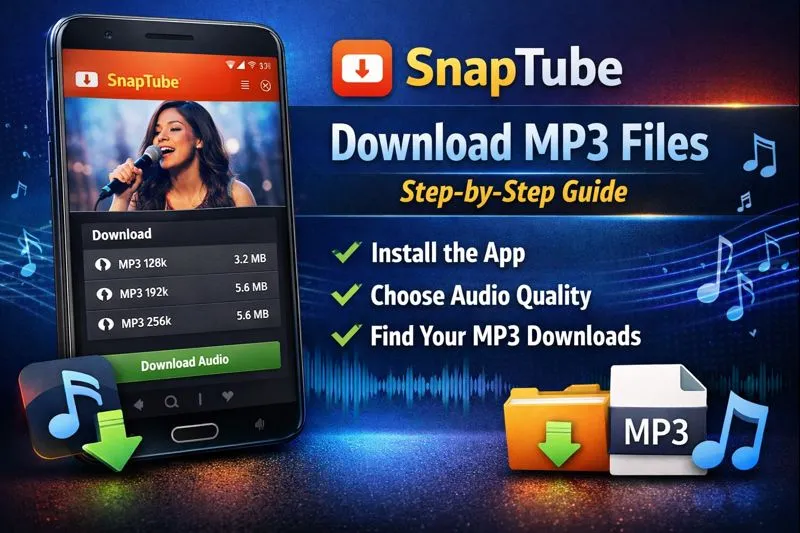
Step 3 – Choose MP3 Format from the Options:
When the video opens, you’ll see all your download choices like MP4, 360p, 720p, and many other formates.
For only audio, Click the MP3 option.
Next, tap download and the file will start saving to your device.
It usually takes only few seconds or some couple of minutes, depending on the file size and also on your internet speed.
Step 4 – Find and Play Your Downloaded Song
When the download complete message shows, go to the SnapTube downloads section.
Or open a file manager to find the MP3.
The file is saved in the SnapTube folder in your pc by default.
To play the mp3 music, use any music app like VLC etc.
Now you can enjoy all types of music offline without using any internet data
Looking for the latest Snaptube updates, tutorials, and download guides? Visit our blog to get complete Snaptube-related information, tips, and step-by-step solutions in one place.